
This software suite makes it easy to remove distracting elements from your photos, whatever your level of expertise. [Article courtesy of Adobe]
In this feature we look at the AI Object Removal functions in Adobe’s software, starting with the freeware online app, Adobe Express Photo, which lets you remove objects from photos online free. Even if you don’t own Photoshop or Lightroom, you can try out Adobe’s powerful, AI-powered Remove Tool by simply visiting the Adobe Express page.

It’s easy to upload the image you want to edit and use the available AI-based tools.
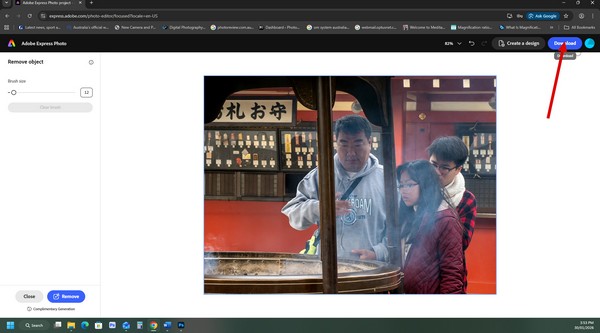
To remove unwanted people from photos, simply drag and drop your photo onto the space provided the select the Remove object tool in the left side panel.
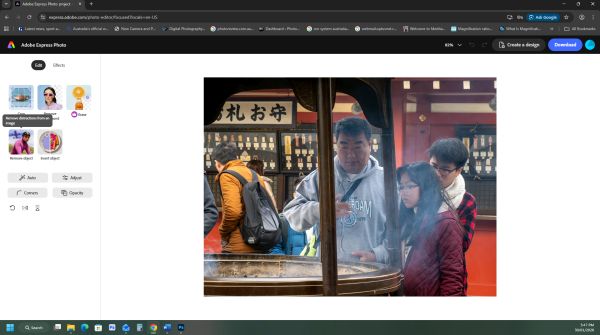
Use the brush in the panel to ‘paint over’ all the objects you want to remove, adjusting the size of the brush to make it easy to get into smaller areas. This can be used to remove people from photos.
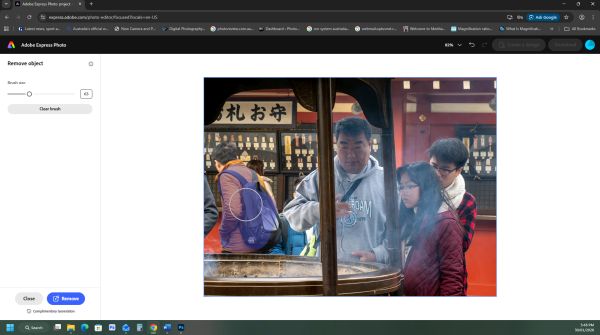
When this is done, click on the Remove button.
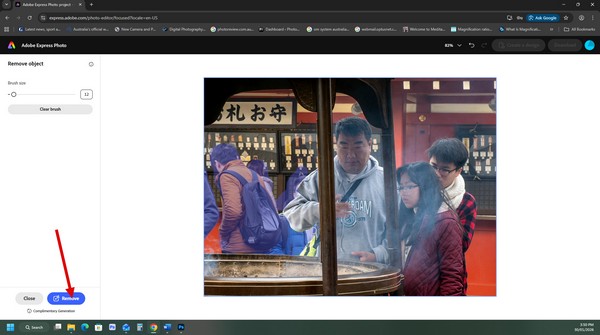
The software will use Generative Fill to replace the areas you’ve selected so they match in with the existing background and it’s a simple way to remove unwanted objects from photos free.
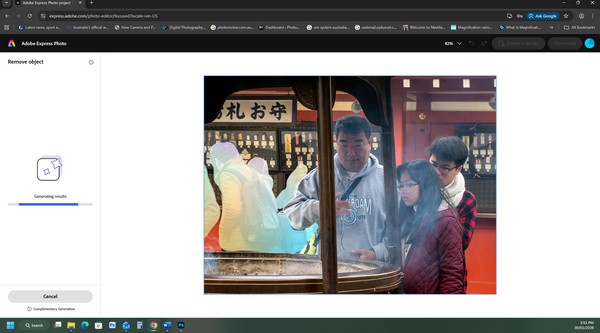
Generative Fill gives you three options to choose from to remove someone from a picture. If none of them works, you can click on the Generate more link to see three addition options. Click on the Keep button to select the one you like. The selected objects will be removed from the picture.
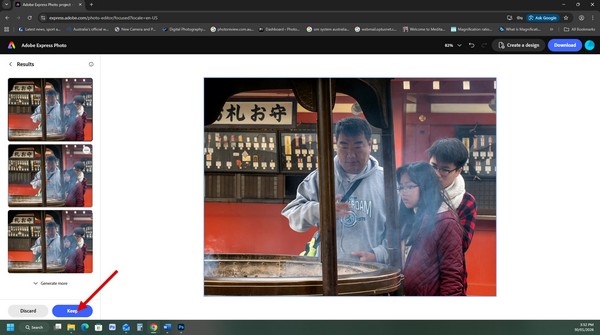
This takes you to a screen where you can download the edited image.
Adobe Express Photo works well when you want to remove unwanted objects from photos free and the objects you want to remove have relatively simple shapes that are easy to brush over. For more complex removal jobs, however, you need more powerful software. We’ve used Photoshop to remove unwanted people from a group shot of pilgrims on the Kumano Kodo pilgrimage trail in Japan. It uses a similar process to Adobe Express.
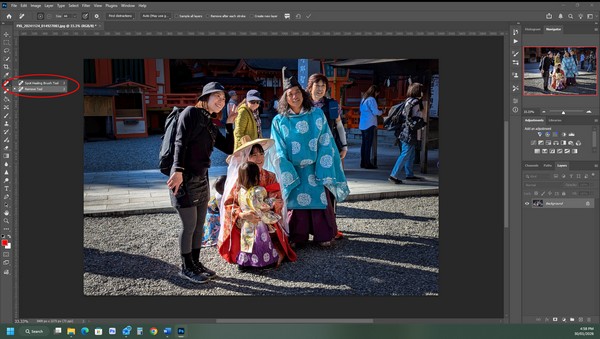
Select the Spot Healing Brush and click on the Remove tool in the dropdown toolbar (circled in red). This will remove the item from the picture.
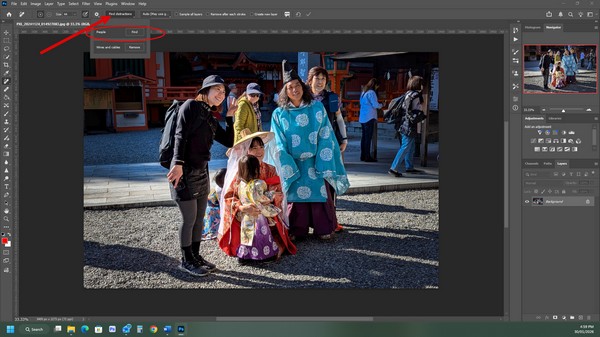
Move to the top toolbar and click on the click the Find Distractions drop-down menu in the options bar. People will be selected automatically. Click on this button and wait while the software paints over the people it ‘thinks’ should be removed.
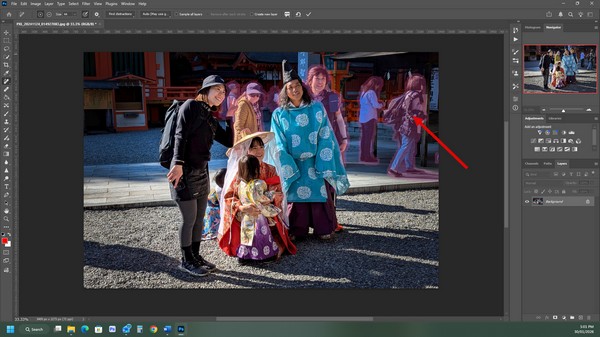
If it doesn’t remove all the items you want removed, use the brush to brush over the areas the software missed. Then click on the white tick on the top toolbar to remove them.
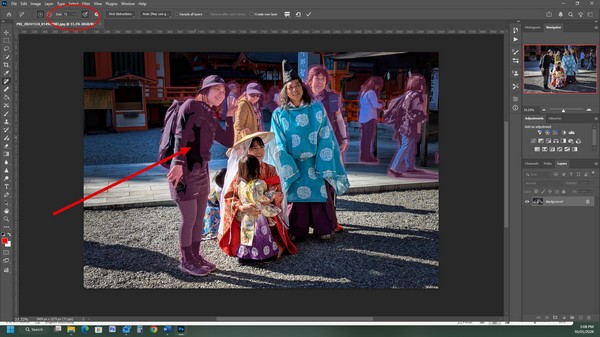
You can use the object removal brush again to ‘clean up’ any areas where additional corrections are required.

The end result.
The Wires and cables removal tool is great for removing distracting cables and wires in complex images like this one.
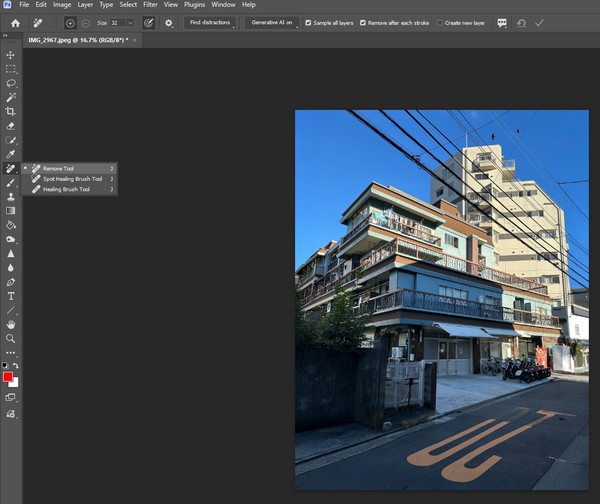
Simply click on the button and the software will locate the offending cables and wires and cause them to seamlessly disappear.
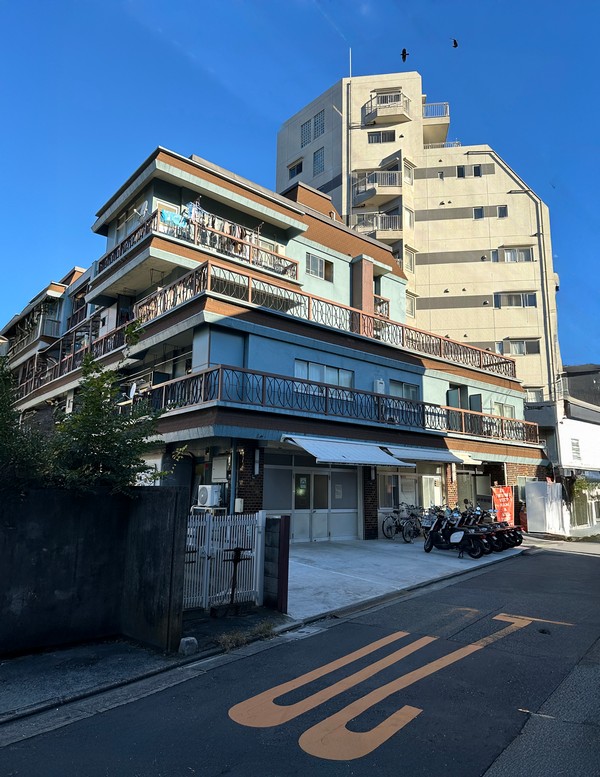
You’re left with a much more attractive image.
You can also remove cables and wires – and other distracting objects – in Adobe Express. However, the software doesn’t have a detection facility so you must paint over the items you want to remove manually.
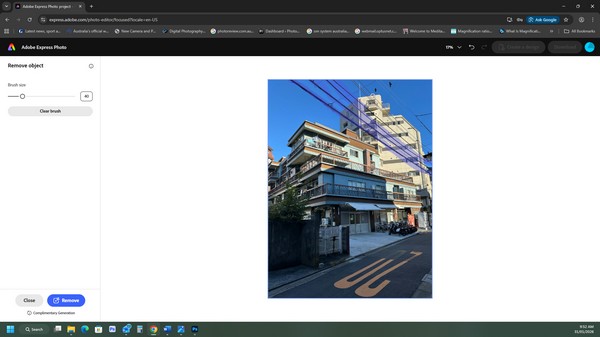
This is not always successful so you often need to request additional ‘generations’ to find a satisfactory result.
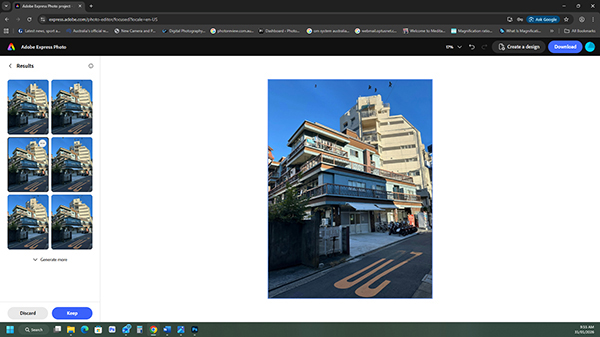
Even then, the object remover tools in Photoshop produce a better result – in a much shorter time. However, with complex tasks like this, neither application has delivered a ‘perfect’ result with all wires removed and the rest of the image unchanged.
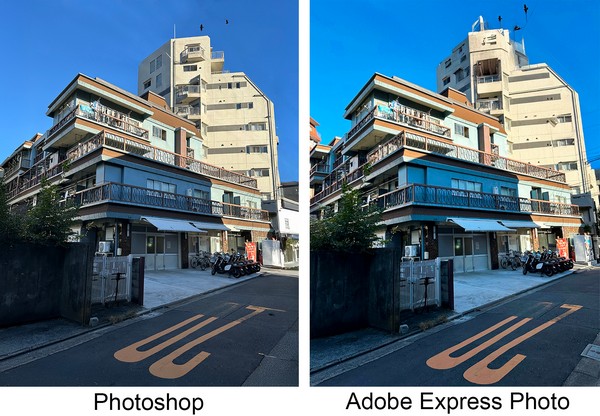
This comparison of the end results for a complex, wire removal task has the results from Photoshop’s distractions removal tool on the left and the ‘Remove object’ tool in Adobe Express Photo on the right. Note that in both cases some of the black birds in the sky have been removed or had their shapes changed.
Get unlimited generations in Firefly on all image models and the Firefly Video Model with Firefly Pro or Firefly Premium — for a limited time. Click here to see the offer.
Click here for more on Adobe Firefly and Creative Cloud